
#
Guild Settings
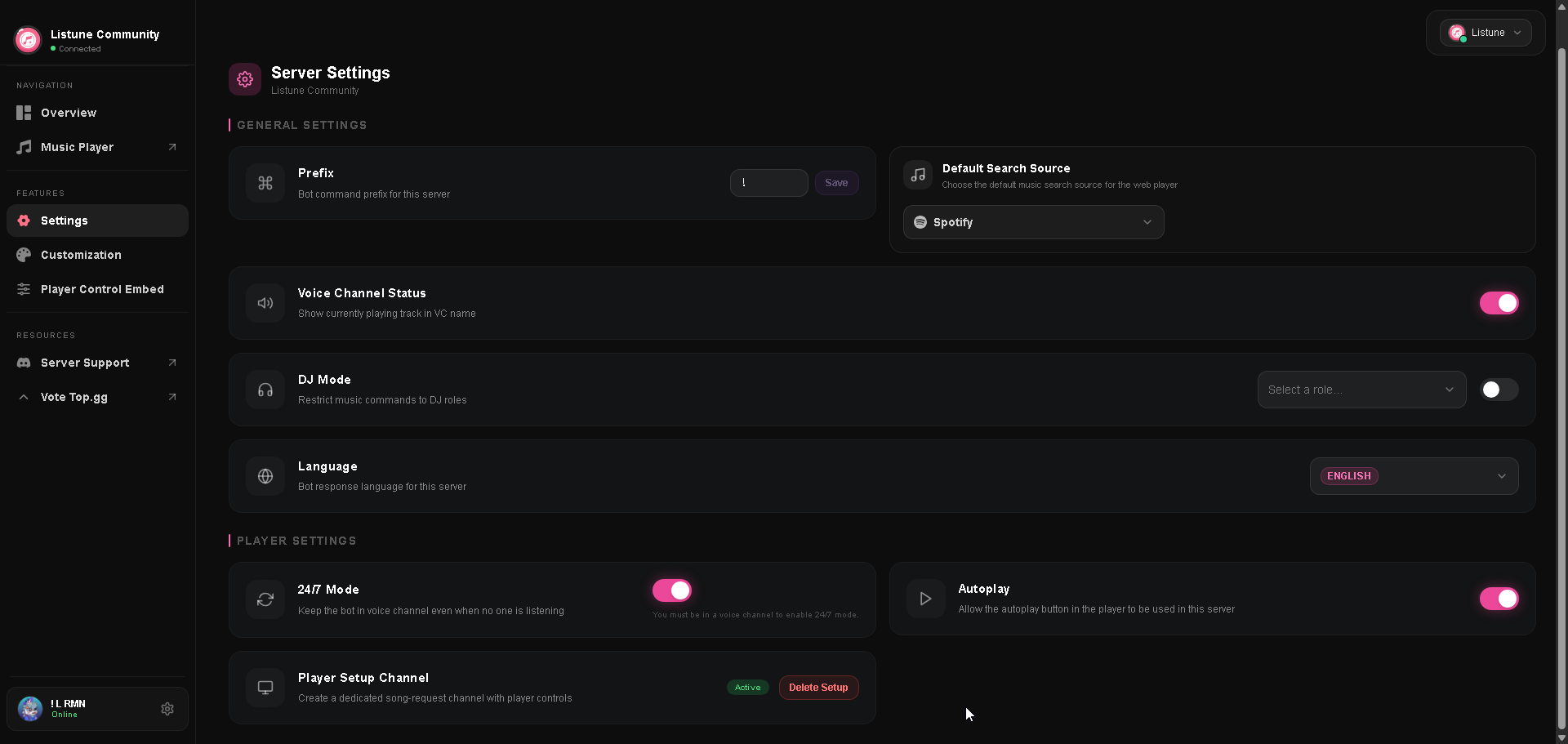
The Guild Settings section on the web dashboard gives administrators full control over server configuration without needing to run individual text commands.
#
Available Settings
#
1. Command Prefix
- Where to find it: General Settings card on the dashboard.
- What it controls: The character prefix used for text commands in Discord channels (default:
!). - Effect of changes: Takes effect immediately across all text channels in the guild. Does not affect slash command execution or direct bot mentions.
#
2. Default Search Source
- Where to find it: General Settings card.
- What it controls: The default streaming provider queried when users submit plain text search queries without specifying a platform URL.
- Supported Options: SoundCloud, Spotify, Apple Music, YouTube, YouTube Music, Deezer, and Tidal.
- Effect of changes: The Web Player and bot slash commands prioritize your selected audio provider for query resolution.
#
3. Voice Channel Status
- Where to find it: General Settings card.
- What it controls: Automatically renames the connected voice channel to reflect the currently playing song title and artist.
- Requirements: The bot must have the Manage Channels permission in Discord to update the channel name.
- Effect of changes: Updates dynamically as new songs begin playing and resets when playback concludes.
#
4. DJ Role System
- Where to find it: General Settings card.
- What it controls: Restricts music controls (pause, skip, volume, audio filters, queue clearing) to members who possess a specific Discord role.
- Effect of changes: When enabled, members without the designated DJ role or the Discord Manage Server permission cannot manipulate the queue unless they are the original requester of the active track.
#
5. Bot Language
- Where to find it: General Settings card.
- What it controls: The localization dictionary applied to command responses, player cards, and help menus sent into server text channels.
#
6. 24/7 Voice Channel Mode
- Where to find it: Player Settings card.
- What it controls: Prevents the bot from disconnecting when the queue empties or when human listeners leave the voice channel.
- Requirements: Requires an active Premium subscription. The bot must currently be in a voice channel when enabling this setting.
- Effect of changes: Keeps Listune permanently connected to your designated voice channel so music is always ready on demand.
#
7. Autoplay Toggle
- Where to find it: Player Settings card.
- What it controls: Controls whether listeners in the server can engage the Autoplay mode.
- Effect of changes: When enabled, the player automatically samples similar tracks based on previous queue history when the last track finishes.
#
8. Player Setup Channel
- Where to find it: Player Settings card.
- What it controls: Creates or removes a dedicated song-request channel.
- Effect of changes: Automatically generates a clean text channel containing a persistent player embed with interactive playback buttons. Users can queue songs by typing song titles directly into the channel without typing any prefix or slash command.